
Best Monitors for MacBook Pro: Single-Cable Setups with 5K Precision
Brighter Picks guide
Best Monitors for MacBook Pro: Single-Cable Setups with 5K Precision
As an Amazon Associate I earn from qualifying purchases.
Products in this guide


Check the model, seller and latest price on Amazon.
If you’re pairing a monitor with a MacBook Pro, two things matter most: macOS-friendly clarity (Retina-like scaling) and a single-cable setup that actually powers your laptop. After that, look at color accuracy, hub features (USB-C/Thunderbolt, Ethernet, KVM), and ergonomics.
How I researched
I compared late-2025 monitor roundups and deep-dive tests, prioritized macOS text clarity (5K/6K vs. scaled 4K), USB-C/Thunderbolt with reliable power delivery, and hub features (downstream USB, Ethernet, KVM). I verified maker specs/manuals, checked Mac fitment (charging wattage and HiDPI scaling), and noted availability/EOL shifts. I weighed color accuracy, uniformity, refresh/response (for scrolling), build/stand, and ownership factors like warranty and calibration.
Top picks
Apple Studio Display (27-inch 5K) — Best for Retina-sharp text & plug-and-play
A true 5K “just works” match for macOS with one cable to your MacBook Pro.
Why it wins: 5120×2880 at 218 PPI plus Thunderbolt 3 with up to 96W charging makes it the most seamless Mac experience.

Pros
-
True 5K Retina clarity for macOS
-
One-cable TB3 with up to 96W charging
-
P3 color, 600-nit brightness; built-in speakers/cam
-
macOS features like True Tone work seamlessly
Cons
-
Not ideal if you need height-adjust without upgrade
-
No HDMI or DP inputs
-
60 Hz only; fine for office/creative work
Social proof
Widely praised for Mac text clarity and single-cable simplicity—see reviews on Amazon.
Trade-offs / Who should skip
Skip if you need multiple video inputs, higher refresh, or an ultrawide canvas.
Scores: Performance 4.5/5 · Mac fit & PD 5/5 · Ease of Use 5/5 · Value 3.5/5
Samsung ViewFinity S9 (27-inch 5K, S90PC/LS27C900PANXZA) — Best 5K value for pros
A matte-screen 5K alternative with Thunderbolt 4 and integrated calibration tools.
Why it wins: 5K resolution with TB4 hub and up to 90W PD in a matte finish that controls glare.
Pros
-
5K clarity with anti-glare matte
-
Thunderbolt 4 hub; up to 90W PD
-
Factory calibration; built-in webcam
-
Optional AirPlay/Smart features
Cons
-
Smart TV UI may be unnecessary
-
90W may slow-charge 16-inch under heavy load
-
60 Hz only
Social proof
Creators like the matte 5K panel and TB4 convenience—see reviews on Amazon.
Trade-offs / Who should skip
If you want Apple-level macOS integration or 96W+ charging, the Studio Display fits better.
Scores: Performance 4.5/5 · Mac fit & PD 4.5/5 · Ease of Use 4/5 · Value 4.5/5
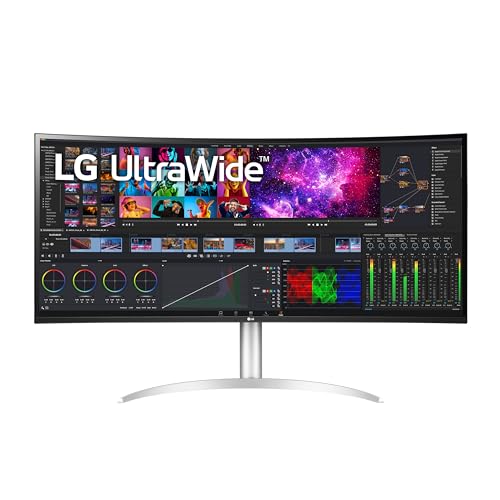
LG 40WP95C-W (40-inch 5K2K ultrawide) — Best ultrawide canvas for multitasking
A huge 5120×2160 curved panel with Thunderbolt 4 and 96W charging.
Why it wins: Immense horizontal space (5K2K) plus TB4 with 96W PD and wide-gamut color—great for timelines and tool palettes.
Pros
-
Massive 5K2K workspace; gentle 2500R curve
-
Thunderbolt 4 with up to 96W PD
-
Wide-gamut color; factory calibrated
-
Up to 72 Hz for slightly smoother scrolling
Cons
-
Text not as crisp as 27-inch 5K
-
Large footprint; deeper desk helps
-
Built-in speakers are basic
Social proof
Favored by video and audio editors for timeline space—see reviews on Amazon.
Trade-offs / Who should skip
If your priority is “Retina” text sharpness, pick a 27-inch 5K instead.
Scores: Performance 4.5/5 · Mac fit & PD 5/5 · Ease of Use 4/5 · Value 4/5
Dell UltraSharp U2723QE (27-inch 4K “IPS Black”) — Best 27-inch 4K USB-C hub
A versatile 4K with excellent contrast for IPS, a full dock (incl. Ethernet), and 90W USB-C PD.
Why it wins: IPS Black panel improves contrast and the USB-C hub/KVM simplifies a one-cable desk for MacBook Pro.

Pros
-
90W USB-C PD with hub + Ethernet
-
Strong contrast for IPS (IPS Black)
-
Daisy-chain via DP out; KVM features
-
Solid ergonomics and build
Cons
-
4K at 27″ isn’t true “Retina”
-
60 Hz only
-
Factory calibration is good, not pro-grade
Social proof
Well-reviewed for office/creative balance—see reviews on Amazon.
Trade-offs / Who should skip
Choose 5K if you’re picky about macOS text crispness; this is a great all-rounder otherwise.
Scores: Performance 4/5 · Mac fit & PD 4.5/5 · Ease of Use 4.5/5 · Value 4.5/5
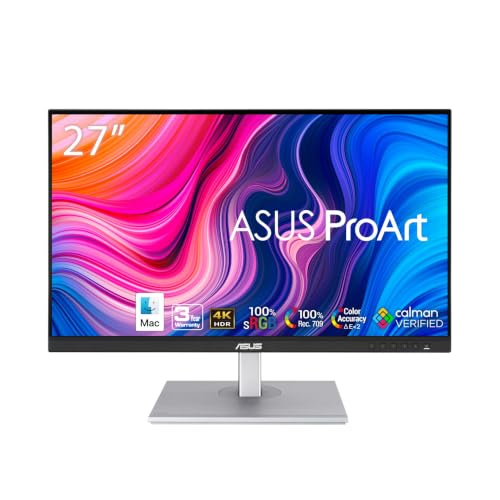
ASUS ProArt PA279CV (27-inch 4K) — Best budget USB-C pick for creators
Affordable color-focused 4K with 65W USB-C power and sRGB/Rec.709 coverage.
Why it wins: Factory-calibrated, Calman-Verified panel plus 65W USB-C for a simple MacBook Pro setup.
Pros
-
65W USB-C with video/data
-
100% sRGB/Rec.709; ΔE<2 calibrated
-
Full-function stand; useful OSD
-
Great value for students/creatives
Cons
-
65W may not fast-charge 14-inch
-
Not ideal for 16-inch under load
-
60 Hz; motion is standard
Social proof
Praised for accurate color at the price—see reviews on Amazon.
Trade-offs / Who should skip
If you want Retina-level sharpness, step up to 27-inch 5K. Need more PD? Consider Dell U2723QE (90W).
Scores: Performance 3.5/5 · Mac fit & PD 3.5/5 · Ease of Use 4/5 · Value 5/5
Quick compare
-
Apple Studio Display — Best for Retina text: 27″ 5K, TB3 96W; ultra-simple Mac integration. Trade-off: few inputs.
-
Samsung ViewFinity S9 — Best 5K value: 27″ 5K matte, TB4 up to 90W, webcam. Trade-off: smart UI you may ignore.
-
LG 40WP95C-W — Best ultrawide: 40″ 5K2K, TB4 96W, huge workspace. Trade-off: not Retina-sharp text.
-
Dell U2723QE — Best 27″ 4K hub: IPS Black, 90W USB-C, Ethernet/KVM. Trade-off: 4K text not as crisp as 5K.
-
ASUS PA279CV — Best budget 4K: 65W USB-C, sRGB/Rec.709. Trade-off: modest PD; basic 60 Hz.
Buying guide
5K vs. 4K on macOS: A 27″ 5K panel (5120×2880) matches macOS HiDPI scaling perfectly, so text looks “Retina.” A 27″ 4K runs scaled (typically looks like 2560×1440)—good, but not as crisp as 5K. If you stare at text all day, favor 5K.
Power delivery (PD):
-
96W: Ideal for fast charging the 14-inch MacBook Pro; also fine for most 16-inch workflows that aren’t sustained heavy GPU/CPU loads.
-
90W: Fine for most workflows on 14-inch and light/medium use on 16-inch; heavy 16-inch loads may draw battery slowly.
-
65W: Maintains/slow-charges 14-inch in light tasks; not ideal for 16-inch.
Ports & hubs: Thunderbolt (TB3/TB4) with downstream USB-C and a built-in USB hub/Ethernet simplifies a one-cable desk. Dell’s U2723QE is excellent here; LG’s 40WP95C-W and Samsung S9 also act as TB hubs.
Color & calibration: P3 coverage matters for Apple-centric workflows; sRGB/Rec.709 is fine for general web/video. Factory calibration (ASUS ProArt, LG UltraWide) saves setup time.
Ergonomics: Prioritize height/tilt and VESA. The Studio Display’s standard stand tilts only; height-adjustable stands or a VESA adapter cost extra.
FAQs
Q: Will a 65W USB-C monitor charge my MacBook Pro?
A: Yes, but slowly—fine for light use on a 14-inch. For faster charging, aim for 90–96W; 16-inch models prefer higher-wattage adapters.
Q: Do I need Thunderbolt, or is USB-C DP Alt Mode enough?
A: For a single 4K display, USB-C with DP Alt Mode is fine. For 5K, daisy-chaining, faster data, and robust PD/hub features, Thunderbolt 3/4 is the better bet.
Q: Why not the LG UltraFine 5K anymore?
A: Availability has been inconsistent lately, and the Samsung S9 or Apple Studio Display cover the 5K slot well with broader availability and updated connectivity.