
Best Drawing Tablets for Digital Illustration
Brighter Picks guide
Best Drawing Tablets for Digital Illustration
As an Amazon Associate I earn from qualifying purchases.
Products in this guide

Check the model, seller and latest price on Amazon.
If you draw for hours, what matters most are pen feel (latency, pressure/tilt, palm rejection), screen quality (size, reflectivity, color), ergonomics, and the apps/drivers you depend on. I picked both “standalone” tablets and plug-in pen displays so you can match your workflow—not force it.
Top picks
Apple iPad Pro 13-inch (M4) — Best for most artists who want a standalone tablet
A portable, color-rich canvas with the best mobile art app ecosystem; pair it with Apple Pencil Pro for pro-level control.
Why it wins: 120 Hz tandem-OLED plus Pencil Pro’s squeeze/barrel-roll/hover make sketching feel immediate with minimal setup.
Pros
-
120 Hz display; excellent pen responsiveness
-
Pencil Pro adds squeeze + barrel-roll + haptics
-
Deep app library (Procreate, Clip Studio, Adobe)
-
Thin/light; easy couch-to-desk device
Cons
-
Pencil Pro sold separately
-
iPadOS file handling can be limiting
-
No built-in pen silo
Trade-offs / Who should skip
Need Photoshop/Blender plug-ins, calibrated multi-monitor, or color-critical pipelines? A pen display below fits better.
Scores: Performance 5/5 · Pen feel & latency 4.5/5 · Ease of Use 4.5/5 · Value 4/5
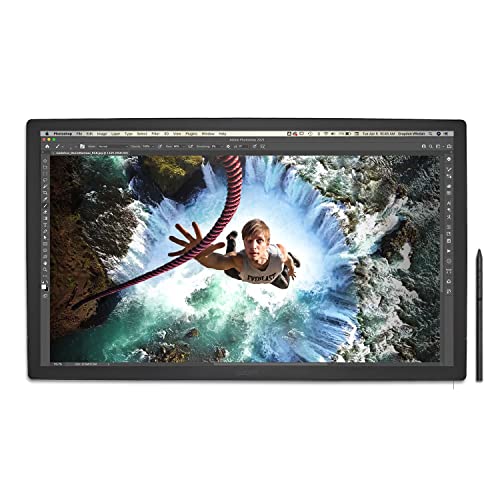
Wacom Cintiq Pro 27 (DTH271K0A) — Best for color-accurate studio setups (Photoshop/Illustrator/3D)
A 27-inch 4K/120 Hz pen display with wide-gamut accuracy and Wacom’s pro drivers.
Why it wins: 99% Adobe RGB / 98% DCI-P3, 10-bit pipeline, and Pro Pen 3 give brush-to-pixel control for print and film work.

Pros
-
27″ 4K canvas with up to 120 Hz
-
Wide-gamut, Pantone-validated workflows
-
Pro Pen 3 with customizable grips/weight
-
Mature drivers and studio adoption
Cons
-
Stand is separate; plan a VESA arm
-
Needs a capable GPU and proper cabling
-
Large and heavy for small desks
Trade-offs / Who should skip
If desk space or budget is tight, the 24-inch value option below is easier to fit.
Scores: Performance 5/5 · Pen feel & latency 4.5/5 · Ease of Use 4/5 · Value 4/5
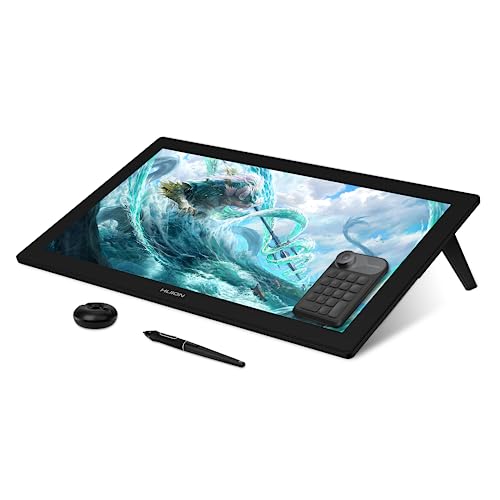
Huion Kamvas Pro 24 (4K) — Best big 4K value
A 23.8″ 4K QLED pen display that balances size, color, and price.
Why it wins: 4K panel with wide gamut and strong contrast; full-laminated anti-glare glass keeps parallax low; Mini KeyDial is included.
Pros
-
Sharp 4K at desk-friendly 23.8″
-
QLED wide gamut; rich contrast
-
Anti-glare etched glass feels
-
Includes dial/shortcut accessory
Cons
-
No touch input
-
Stand/arm may be extra
-
Color not as tight as Cintiq Pro
Trade-offs / Who should skip
If you need Pantone validation or 120 Hz, the Cintiq Pro 27 leads.
Scores: Performance 4.5/5 · Pen feel & latency 4/5 · Ease of Use 4/5 · Value 4.5/5
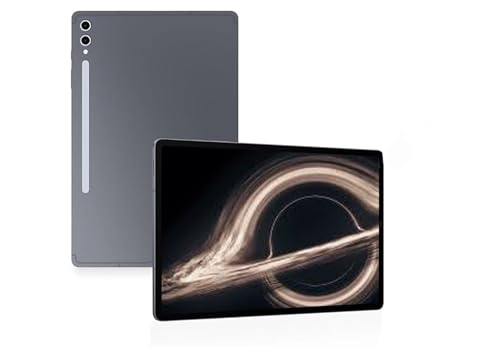
Samsung Galaxy Tab S10 Ultra (14.6″, Wi-Fi) — Best Android tablet for drawing
A huge 14.6″ Dynamic AMOLED 2X canvas; S Pen is in the box with low-latency inking and an anti-glare screen option.
Why it wins: Big screen + included S Pen deliver a ready-to-draw portable rig with strong Android art apps.
Pros
-
14.6″ canvas; 120 Hz AMOLED
-
S Pen included; low latency
-
Good multitasking for references
-
Solid battery life for travel
Cons
-
Hefty for handheld sketching
-
Android app depth trails iPad
-
Accessories vary by region
Trade-offs / Who should skip
If you live in Procreate, the iPad ecosystem still wins.
Scores: Performance 4.5/5 · Pen feel & latency 4/5 · Ease of Use 4/5 · Value 4/5
Wacom Intuos Pro (2025), Medium (PTK670K0A) — Best no-screen tablet for desk setups
The classic “look-up, draw-down” workflow with Wacom’s newest Pro Pen 3 and refined shortcuts.
Why it wins: Ultra-thin Bluetooth tablet with Pro Pen 3 customization and rock-solid drivers; pro-line warranty support.

Pros
-
Pro Pen 3: swappable grips/weights
-
ExpressKeys + dials streamline work
-
Light, durable, easy to pack
-
Works with Windows/macOS
Cons
-
No built-in screen
-
Learning curve for eye-hand coord
-
Multi-touch is absent on this line
Trade-offs / Who should skip
If you need on-screen cursor alignment, choose a pen display instead.
Scores: Performance 4/5 · Pen feel & latency 4/5 · Ease of Use 4/5 · Value 4/5
Quick compare
-
iPad Pro 13 (M4) — Best for most: elite OLED + Pencil Pro; iPadOS limits desktop plug-ins.
-
Wacom Cintiq Pro 27 — Best studio display: 27″ 4K, up to 120 Hz, wide gamut; needs strong GPU/stand.
-
Huion Kamvas Pro 24 (4K) — Best 4K value: big QLED color; no touch; stand/arm optional.
-
Galaxy Tab S10 Ultra — Best Android: 14.6″ AMOLED + S Pen included; heavier than iPad.
-
Wacom Intuos Pro (2025) — Best no-screen: latest Pro Pen 3; needs an external monitor, no touch.
Buying guide
Standalone tablet vs. pen display
-
Want portability + couch sketching + Procreate? Choose a standalone tablet (iPad Pro + Pencil Pro).
-
Need Photoshop/Illustrator, color-critical work, or 3D? Choose a pen display (Cintiq Pro 27 for best color/refresh; Kamvas Pro 24 4K for value).
-
Prefer a calibrated monitor and ergonomic desk setup? Go no-screen (Intuos Pro).
Screen size & texture
-
13–14″ excels for portability; 24–27″ shines for detailed painting and full tool palettes. Etched/anti-glare glass improves control and reduces reflections.
Color and refresh
-
For print/film pipelines, target wide-gamut (Adobe RGB/DCI-P3) and consider 120 Hz if you do fast gestural work—Cintiq Pro 27 leads here.
Pens & features
-
Apple Pencil Pro: squeeze, barrel-roll, hover, haptics.
-
Wacom Pro Pen 3: customizable grips/weight/buttons; battery-free EMR.
Ports, power, cabling (pen displays)
-
For stable 4K color work (and especially high refresh), confirm your GPU outputs and cabling match the display’s requirements (DisplayPort/HDMI per vendor guidance).
Warranty
-
Pro-line pen displays and tablets typically include multi-year limited warranties in the US; details vary by model.
FAQs
Q: iPad-style tablet vs. Cintiq-style display—what feels better?
A: Both feel excellent. iPad Pro’s 120 Hz OLED plus Pencil Pro gestures make it frictionless for illustration on the go; Cintiq Pro 27 offers a larger, calibrated, up-to-120 Hz desktop canvas for color-critical work.
Q: Do I need 4K?
A: At 24–27″, 4K keeps brushes/textures crisp and leaves room for palettes. At 13–14″, refresh rate and latency usually matter more than raw resolution.
Q: Will these work with Clip Studio Paint, Photoshop, etc.?
A: Yes—iPad has dedicated mobile versions; Windows/macOS pen displays and pen tablets use full desktop apps with mature drivers from Wacom/Huion.